Cloud Run is a powerful tool in PAD that allows you to deploy code in the cloud and integrate your code with other tools in your project, such as scheduling and your BigQuery data, as well as third-party APIs and external services.
What should I use Cloud Run for?
Cloud Run is great for discrete scripts that are triggered by events, such as a pub/sub notification in GCP or a file being uploaded to a Google Cloud bucket. For example: let’s say you are regularly receiving data from someone else as a file in a Google Cloud bucket, and your workflow after receiving the file is to ingest it into BigQuery and then manually clean it. You can use Cloud Run to automate this process by writing a script to ingest and clean the data, deploying it with Cloud Run, and setting it up to be triggered by file drops in a specified bucket.
For more advanced use cases, you can also use Cloud Run to integrate with third-party APIs or as part of building apps. Functions can also be triggered through direct HTTP calls for use cases with REST APIs (or for testing). See here for several additional examples.
To get started with Cloud Run in your project:
Navigate to ‘Cloud Run’ in the GCP console, and scroll down to ‘write a function’. Then, select the language you want to use. Most common languages are supported, including Python, Ruby and Go. From there, you’ll have the option to deploy a service from a container image (more on those here if you’re unfamiliar), connect to a GitHub repo, or paste your script directly. You’ll also have the option to set other parameters, such as the language version, authentication and scaling. For in-depth tutorials on getting set up, see here.

Once your service is created, you can edit and see metrics, logs and other parameters on the Cloud Run page. You can also deploy and monitor services via the command line if preferred with the gcloud SDK.
How can I maximize security and scaling?
We recommend setting up a dedicated service account for each deploy - if you don’t specify a dedicated account, Google will automatically use the ‘Compute Engine’ default service account, which may be over-permissioned for your use case. To change the service account when setting up a function, expand the ‘Containers, Networking and Security’ tab, click on the ‘Security’ tab, and navigate to the ‘Service Account’ dropdown. To change the service account on an existing function, click on ‘Edit and deploy a new revision’, click the ‘Security’ tab and navigate to the ‘Service Account’ dropdown.
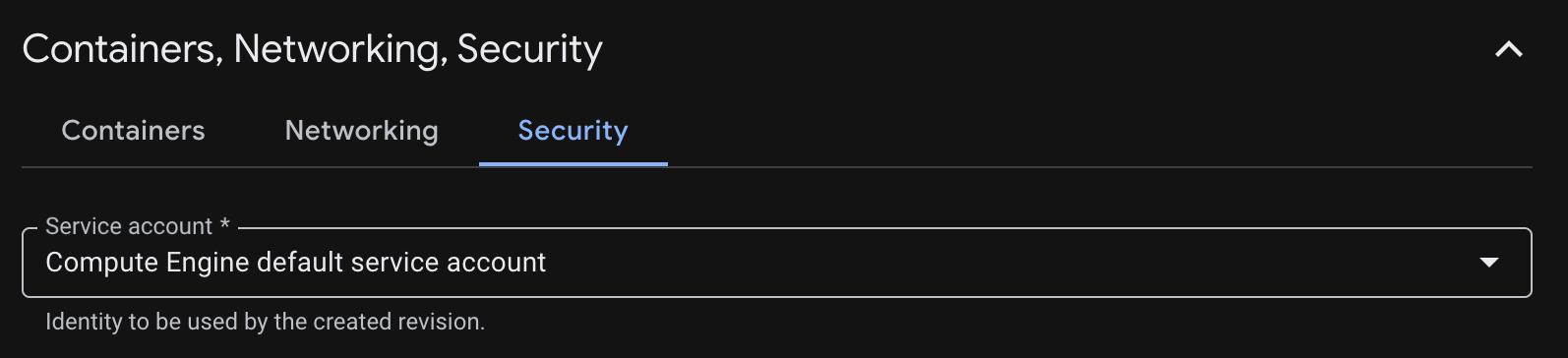
We also recommend being thoughtful about the scaling and authentication methods you choose for billing and security purposes. When it comes to scaling - if you’re testing, and/or if more instances aren’t specifically needed for your purposes, we recommend setting the parameter to 1-2 instances maximum. For the user authentication options: you are able to allow public access, which can be helpful for testing, but we strongly recommend requiring authentication through IAM once your service is deployed unless there’s a strong specific need for public access.
How does pricing work with Cloud Run?
When you’re setting up your function, you’ll have the option to choose between request-based or instance-based billing. We recommend using request-based for most use cases, which means you’ll only be charged when processing requests and is typically cheaper.
Any compute incurred from your Cloud Run services counts towards your monthly compute allowance for PAD. You can access a full pricing breakdown here. We recommend periodically monitoring usage, as it can fluctuate and spike up and down quickly. CTA provides a breakdown of monthly compute used on your Budget page in the PAD UI to reference.
Was this article helpful?
That’s Great!
Thank you for your feedback
Sorry! We couldn't be helpful
Thank you for your feedback
Feedback sent
We appreciate your effort and will try to fix the article